[TUTORIAL] How to make LoG2 Normal Maps
Posted: Sun Nov 02, 2014 10:04 pm
Here is a short tutorial, how to make valid normal maps for your custom models:
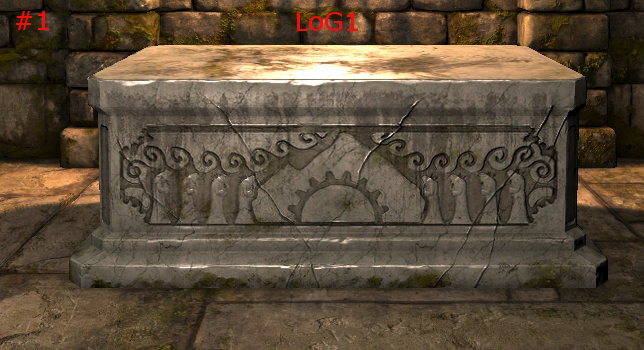
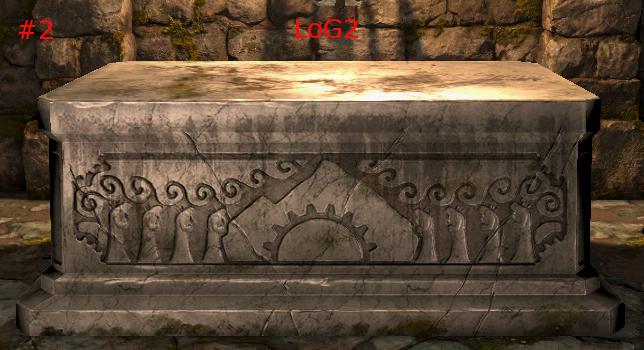
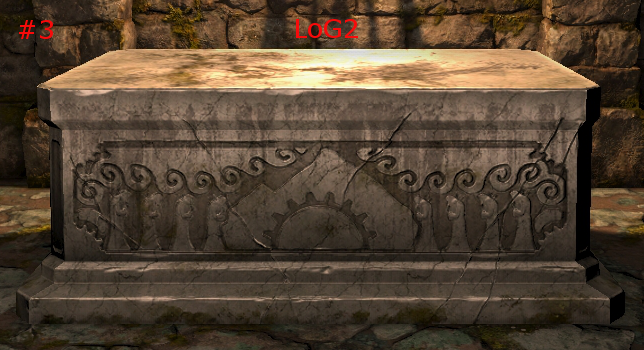
After several tests with custom models, I concluded that LoG 2 engine uses FS2_Open Shader. It means, you have to change your normal maps making pipeline to get propper results.
Following tutorial is reposted important part from here, by Herra Tohtori.
FS2_Open shader system uses a set-up where it reads the green channel and alpha channel of an image for u/v co-ordinate normals data. Red and blue channels are completely ignored. This is called normal map-style DDS file, and the most common format is dxt5nm since it takes advantage of the awesome dxt5 compression. However you shouldn't be too confused by the -nm suffix in the file type; the file is a normal DXT5 file with some channel management to take care of the normals information being in the correct channels.
When you save into FS2_Open-usable normal map, you have two options.
First way, which I prefer:
step 1 - manually copy red channel to alpha channel (in Photoshop go to Channels, add new chanel (it's Alpha), CTRL+click on Red channel, then select alpha channel and paste)
step 2 - manually fill red and blue channels with black, which reduces the amount of information that the DXT compression needs to store, to some extent.
step 3 - save as DDS file that has full alpha channel --> DXT5, (not DXT5nm since it will just ruin your channel management with it's own and you end up with bad file).
GIMP Tutorial is here.
Second (untested) way is to save the purplish normal map into DXT5nm compressed file with a DDS plugin, which does the trick in the sense that FS2_Open should be able to read the file. This file will indeed look like a grayscale (with some transparency) since most DXT5nm saving procedures move the red channel into alpha channel and copy green channel to red and blue channels to make an uniform RGB image. If you're just starting, it might be easiest to just use this method at least while you're getting your normalmapping technique itself sorted out. To be honnest I'm not 100% sure if saving in DXT5nm works in right way.
And one more important note: You may be frustrated as I was, until you find that Editor must be fully restarted (forget CTRL+R) to load new textures. I spent a lot of time making different normal maps filles, including object space versions etc, without ingame effect, until I found this 'great editor feature' (glosines material definition without ingame effect helped me to find this bug)
For more info, you can read this article: http://www.bencloward.com/tutorials_normal_maps9.shtml
Or if you are making normalmaps from diffuse textures, do it in right way: http://www.katsbits.com/tutorials/textu ... images.php
After several tests with custom models, I concluded that LoG 2 engine uses FS2_Open Shader. It means, you have to change your normal maps making pipeline to get propper results.
Following tutorial is reposted important part from here, by Herra Tohtori.
FS2_Open shader system uses a set-up where it reads the green channel and alpha channel of an image for u/v co-ordinate normals data. Red and blue channels are completely ignored. This is called normal map-style DDS file, and the most common format is dxt5nm since it takes advantage of the awesome dxt5 compression. However you shouldn't be too confused by the -nm suffix in the file type; the file is a normal DXT5 file with some channel management to take care of the normals information being in the correct channels.
When you save into FS2_Open-usable normal map, you have two options.
First way, which I prefer:
step 1 - manually copy red channel to alpha channel (in Photoshop go to Channels, add new chanel (it's Alpha), CTRL+click on Red channel, then select alpha channel and paste)
step 2 - manually fill red and blue channels with black, which reduces the amount of information that the DXT compression needs to store, to some extent.
step 3 - save as DDS file that has full alpha channel --> DXT5, (not DXT5nm since it will just ruin your channel management with it's own and you end up with bad file).
GIMP Tutorial is here.
Second (untested) way is to save the purplish normal map into DXT5nm compressed file with a DDS plugin, which does the trick in the sense that FS2_Open should be able to read the file. This file will indeed look like a grayscale (with some transparency) since most DXT5nm saving procedures move the red channel into alpha channel and copy green channel to red and blue channels to make an uniform RGB image. If you're just starting, it might be easiest to just use this method at least while you're getting your normalmapping technique itself sorted out. To be honnest I'm not 100% sure if saving in DXT5nm works in right way.
And one more important note: You may be frustrated as I was, until you find that Editor must be fully restarted (forget CTRL+R) to load new textures. I spent a lot of time making different normal maps filles, including object space versions etc, without ingame effect, until I found this 'great editor feature' (glosines material definition without ingame effect helped me to find this bug)
For more info, you can read this article: http://www.bencloward.com/tutorials_normal_maps9.shtml
Or if you are making normalmaps from diffuse textures, do it in right way: http://www.katsbits.com/tutorials/textu ... images.php


 ). I'd figured out everything except I missed the above: I kept trying to Google swapping channels in Gimp and never found the